
Set up the parts that need wifi before you leave. The job at arrivals should be short: turn on the travel eSIM, select it for mobile data, and open the address you already saved.
Check eSIM support and carrier lock
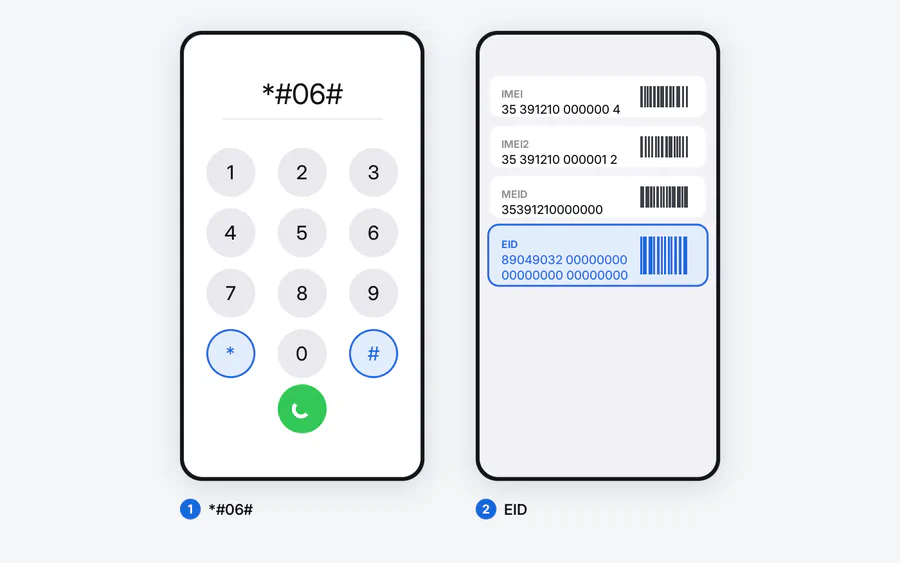
Dial *#06# and look for an EID, then search Settings for an option such as Add eSIM or Download SIM. An EID confirms eSIM hardware, but the phone must also be carrier-unlocked. The phone compatibility guide covers regional model differences and the lock checks for iPhone and Android.
Do not assume that paying off a phone automatically unlocked it. The carrier that sold it can confirm the status and its unlock requirements.
Buy and install Atli while you have reliable wifi
Message Atli on WhatsApp or Telegram, choose the destination and plan, then follow the installation instructions in the chat. Use the iPhone installation guide or Android installation guide if you want to see the steps before starting.
You only install one Atli eSIM profile. Leave that profile on the phone when a plan expires. Any later Atli plan is added to the same profile automatically, so there is no second eSIM to install.
Leave the travel line off until arrival
Installing before departure does not mean using the line before departure. Keep Atli switched off until you reach the destination. After you arrive:
- Turn on the Atli eSIM.
- Select Atli for Mobile Data or Cellular Data.
- Turn on Data Roaming for Atli. This setting lets the travel eSIM connect to its partner network and does not add a separate Atli roaming fee.
- Turn off automatic mobile-data switching if your phone offers it, so data stays on Atli.
Do not delete the Atli profile after the trip. Data plans expire; the eSIM profile does not.
Decide what to do with your home SIM
Atli is data-only. It does not provide a phone number, SMS, or cellular voice calls. If your phone supports Dual SIM, your home SIM can stay active for your own number, calls, and texts while Atli handles mobile data.
Your home carrier may charge for roaming calls, sent texts, received texts, or background data. Check its rules before departure. If you do not need the home line, switching it off is the simplest way to prevent charges. WhatsApp and Telegram calls use the Atli data plan rather than Atli cellular voice service.
Download a map and save the first address
Download the destination area in your maps app. Also save the accommodation name, full street address, and check-in instructions as a screenshot or note. An offline map is useful before the eSIM connects, but some features need internet. Google Maps, for example, does not offer offline public-transport, walking, or cycling directions.
Save tickets and bookings offline
Put boarding passes, rail tickets, hotel confirmations, travel insurance details, and reservation numbers somewhere that opens without a connection. A wallet app is convenient; a screenshot is a useful backup. Keep passport or payment-card images out of an unlocked photo gallery.
Back up the phone and enable recovery tools
Run a fresh backup before leaving. Check that Apple Find My or Google’s Find Hub is enabled and that you can sign in to the associated account from another device. Save any essential recovery codes somewhere separate from the phone.
Pack power for the first day
Bring the correct plug adapter, a working cable, and a charger. A small power bank helps on long travel days, but it belongs in cabin baggage, not checked luggage. Check the airline’s battery limits before packing it.
Checked against current Apple and Google guidance for eSIM setup, carrier lock, offline maps, and lost-device tools, current aviation battery rules, and Atli’s service behavior, August 2026.
FAQ
Should I install my eSIM before or after arriving?
Does Data Roaming cost extra on Atli?
Will my normal number still work abroad?
How do I know if my phone supports eSIM?
*#06# and look for an EID, then check Settings for an eSIM menu. You must also confirm that the phone is carrier-unlocked.