An Atli eSIM can supply your phone’s personal hotspot. Atli does not add a tethering fee or a separate hotspot allowance, but everything the connected devices use comes out of the active data plan.
Turn on Personal Hotspot on iPhone
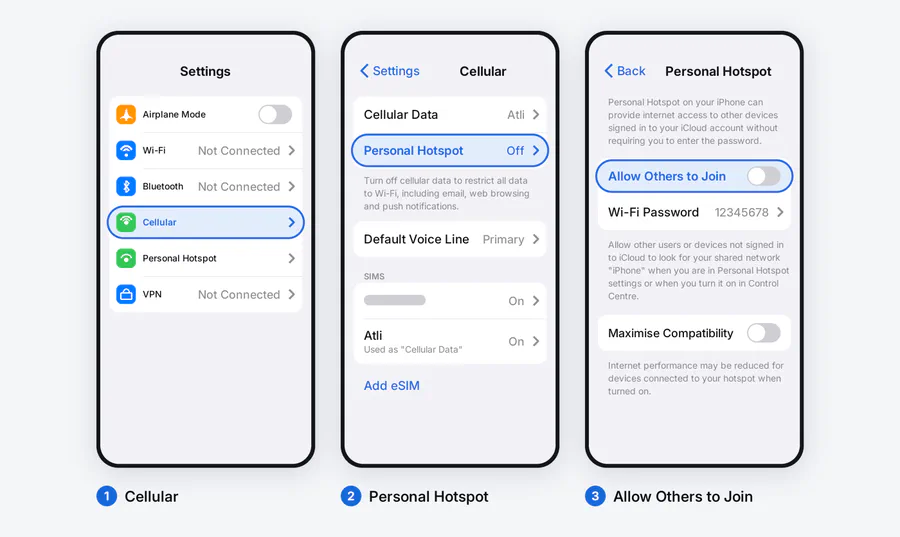
- Open Settings > Cellular or Mobile Service.
- Under Cellular Data, select the Atli eSIM.
- Return to Settings and open Personal Hotspot. On some iPhones it appears under Cellular.
- Turn on Allow Others to Join.
- Set a WiFi password, then choose the iPhone’s name from the other device.
If the other device uses the same Apple Account, Instant Hotspot may connect it without asking for the password.
Turn on hotspot on Android
Android menu names vary. Search Settings for “hotspot” if the paths below do not match your phone.
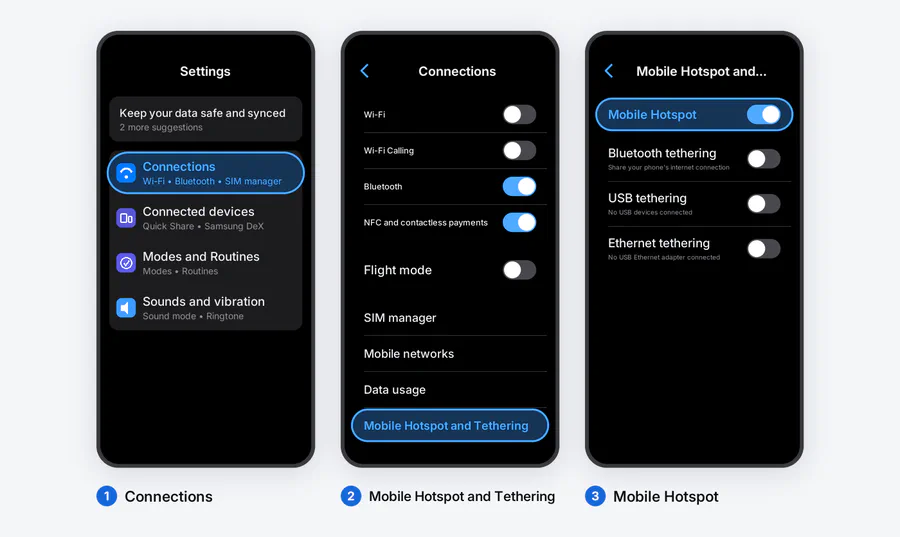
On Samsung Galaxy:
- Open Settings > Connections.
- Tap Mobile Hotspot and Tethering.
- Open Mobile Hotspot, set the network name and password, then turn it on.
On Google Pixel:
- Open Settings > Network & internet.
- Tap Hotspot & tethering > Wi-Fi hotspot.
- Set the name and password, then turn on Use Wi-Fi hotspot.
Google notes that Data Saver must be off for WiFi tethering on Pixel. Other Android phones can handle this differently.
If the hotspot control is missing
First, check whether the phone itself can open a webpage over the Atli eSIM. If it cannot, hotspot troubleshooting will not fix the underlying data connection. Use the eSIM no-data checklist first.
If mobile data works on the phone, check these settings:
- Confirm that Atli, rather than the home SIM, is selected for mobile data.
- Turn on Data Roaming for the Atli line. Leave the home line’s roaming setting off unless you intend to use it.
- On Pixel, turn off Data Saver while tethering.
- Restart the phone. On iPhone, Apple also recommends checking for iOS and carrier-settings updates.
- Check that the phone is unlocked. An unlocked phone is required to use a travel eSIM, although a lock is not the only possible reason a hotspot menu can be missing.
Do not type a manual APN in an attempt to make the menu appear. Atli’s APN is automatic. The APN guide explains what that setting does and when to leave it alone.
Keep a laptop from draining the plan
A laptop treats your phone like an ordinary WiFi connection. It may start cloud sync, software updates and large downloads in the background.
Pause those jobs before connecting. Lower streaming quality and disconnect devices when they are no longer in use. Hotspot also uses the phone battery quickly, so keep a charger or power bank nearby for a long session.
To check the plan while tethering, type data or usage in the Atli chat. For a closer look at the apps and devices using it, see how to check eSIM data usage.
How many devices can connect?
Atli does not impose a separate device limit on hotspot use. The phone still has its own connection limit, which depends on the model, software and network conditions. Every device shares the phone’s mobile connection and the same Atli plan.
For a travel companion who needs an independent connection when you separate, a personal hotspot is a poor substitute for their own plan. It only works while both devices remain within WiFi range of your phone.
Checked against Atli’s current hotspot and automatic-APN information, Apple Personal Hotspot guidance, and Google Pixel tethering guidance, August 2026. Phone menus and device limits vary by model, software and carrier settings.